Offline Android maps
How to download offline maps on Android before a hike
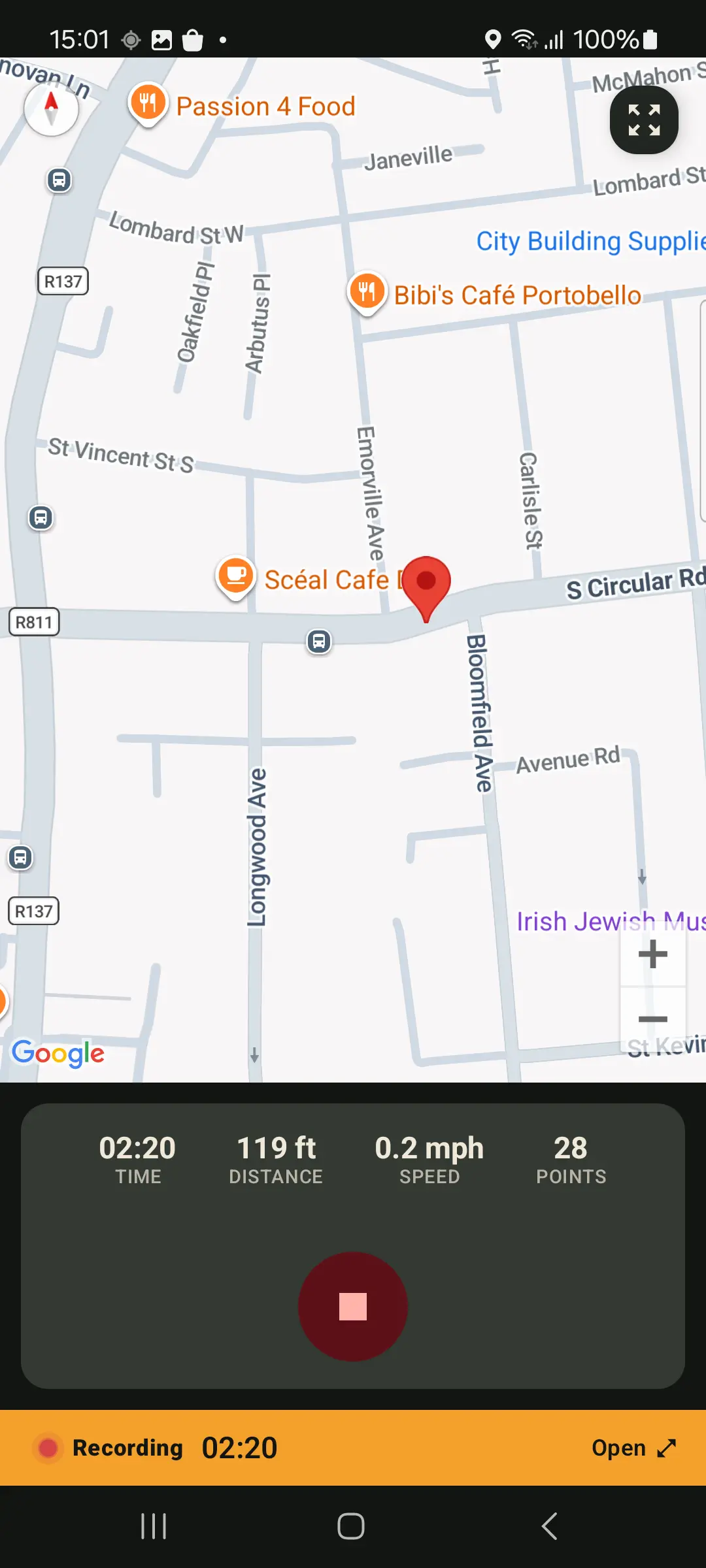
Mobile coverage is not a plan. Before a hike, bike ride or road trip, save the OpenStreetMap area around your route to your phone. GPS Logger then keeps that downloaded map visible on the Recording screen when the signal disappears, while GPS continues recording your route.
Quick answer
In GPS Logger, open Recording, tap Map layer, select OpenStreetMap, OSM Topo or OSM Cycle, and pan or zoom to the area you need. Tap Offline maps, check the estimate, then choose Download visible area. Wait for it to finish before leaving coverage. Downloaded map areas are a GPS Logger Pro feature.
What an offline map does, and does not do
Your phone's GPS receiver gets a position from satellites; it does not need mobile data to know where you are. The map behind that position normally does need data, though. Downloading an offline map saves the selected OpenStreetMap area to your device so the Recording map can still draw roads, paths and your route there without a connection.
It is not a worldwide offline map and it does not download every map style. Only the OpenStreetMap layer you save, within the visible area, is available offline. Plan for the places you will actually travel through and download them before you leave.
1. Open the Recording screen while connected
Connect to Wi-Fi or mobile data before you start. Open GPS Logger and go to Recording. You can prepare a map before pressing record; there is no need to start a route just to download the area.
2. Switch the map layer to OpenStreetMap
Tap the Map layer button on the Recording map. Choose one of the OpenStreetMap-based layers:
- OpenStreetMap for the standard street and trail map.
- OSM Topo when a topographic view is more useful for the trip.
- OSM Cycle when you want the cycling-oriented map.
The offline-download button appears when an OpenStreetMap layer is active. Google map layers are not part of this offline-map feature.
3. Pan and zoom to the area you really need
Move the map until the visible rectangle includes your planned route and a little margin for detours. Zoom to a practical level: a small trailhead, park or town is quick to save, while a huge region needs substantially more map data. GPS Logger shows an estimated download size before anything starts and refuses areas that are too large for one download.
4. Download the visible area
Tap Offline maps, review the storage estimate, and select Download visible area. Keep the app connected until the progress reaches completion. The app lists saved areas in the same panel, so you can see what is already on the phone.
5. Check it before leaving coverage
When the download says it is complete, keep the same OpenStreetMap layer selected and confirm the area looks right. For a longer route, save neighbouring visible areas too. Before relying on it in the field, briefly disable Wi-Fi and mobile data and check the map while you are still somewhere safe with a charged battery.
Record normally when you are offline
Start a recording when you are ready. GPS Logger continues recording with the screen off when Android's location and battery settings allow it; see how to record a GPS track with the screen off. The downloaded map helps you see the route in the saved area. It does not change GPS accuracy, replace a dedicated emergency device, or guarantee a phone will have battery or satellite visibility in every environment.
Manage storage after the trip
Downloaded areas stay on this device until you delete them. To reclaim space, open Offline maps from the Recording map and delete an area you no longer need. Your recorded tracks are separate from map downloads, so removing an offline area does not delete your route history.
Frequently asked questions
Can I use GPS without internet on Android?
Yes. GPS uses satellites, so a phone can record a route without mobile data. Offline maps supply the local map background for the area you downloaded in advance.
How much storage does an offline map need?
It depends on the visible area, zoom level and selected map layer. GPS Logger estimates the download before it begins; zoom in if the area is too large.
Do I need Pro for offline maps?
Yes. Downloading offline OpenStreetMap areas is a Pro feature. Existing saved areas remain visible in the manager so they can be removed at any time.
Will every screen show the downloaded map?
The offline-map download is for the OpenStreetMap map on the Recording screen. Other screens or map layers can have different map support, so check the Recording screen before the trip.