Screen-off GPS recording
How to record a GPS track with the screen off on Android
A useful GPS logger should keep recording after you start a route, put the phone in your pocket, and get on with the walk, hike, ride or drive. On Android, that means foreground location, clear permissions and realistic battery settings.
Quick answer
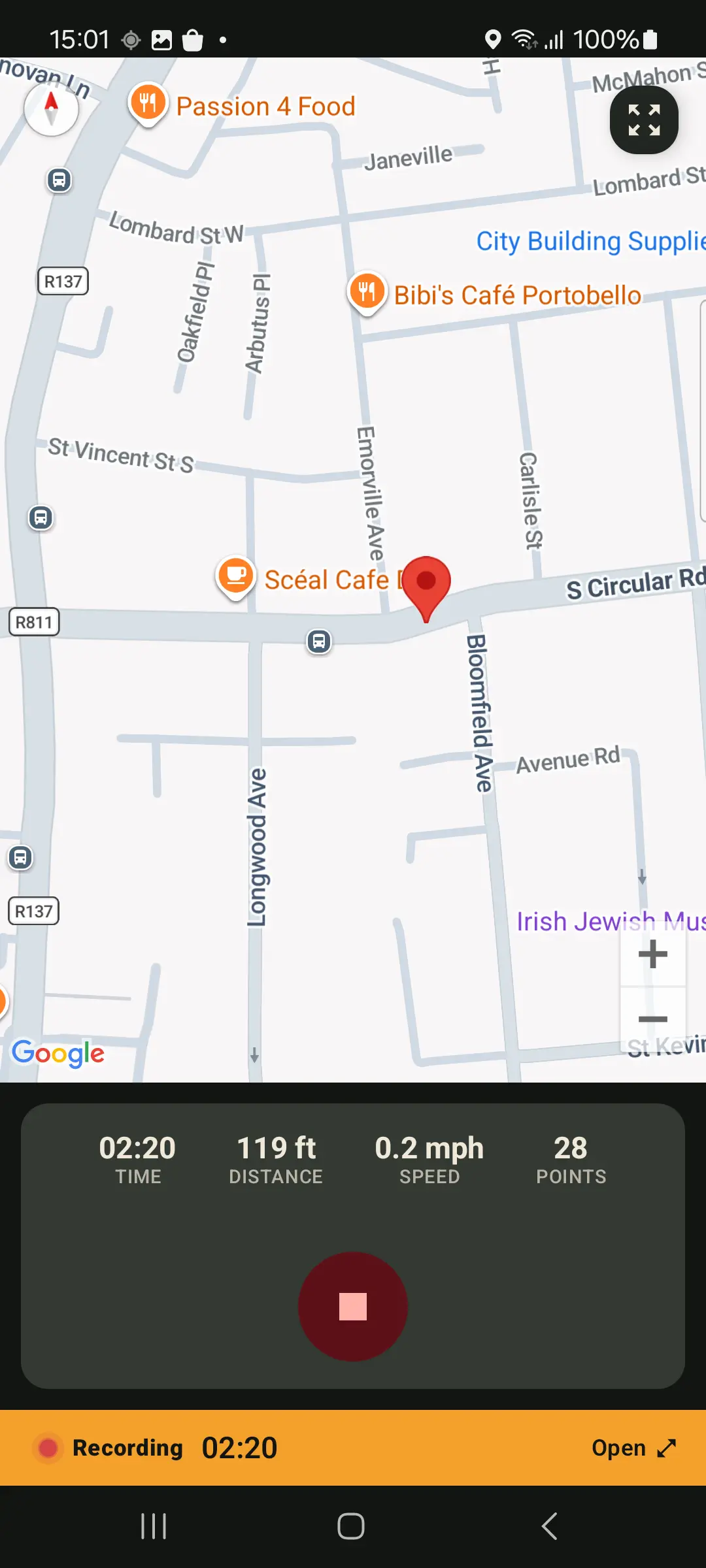
Install GPS Logger, allow location access, tap record, confirm the ongoing recording notification, then lock the screen. The route continues while the phone is in your pocket. When you stop, the app saves the track so you can review the map, stats and export GPX or KML.
Why screen-off GPS recording needs special handling
Android protects battery and privacy by limiting apps that keep using location in the background. A proper route logger cannot quietly run forever in the dark. It needs a user-started recording, a visible foreground-service notification and the right location permission for your use case.
GPS Logger is built around that model: you start recording, Android shows an ongoing notification, and you stop recording when the route is done. Optional auto-start after reboot exists, but only if you enable it yourself.
Step 1: allow the right permissions
Location permission is required for any GPS route. If you want recording to continue when the app is not on screen, background location lets Android keep providing fixes while the phone is locked or another app is open. On newer Android versions, notification permission may also be needed so the active recording notification can appear.
Step 2: start recording before you move
Open GPS Logger and tap record before the route begins. This works for normal trips such as:
- Walking, hiking and trail routes
- Cycling, commuting and running
- Road trips, field visits and site surveys
- Dog walks or everyday route memory
Step 3: check the notification
When recording is active, Android shows a persistent notification. That notification is not just cosmetic: it is the visible signal that a foreground location service is running. If the notification is missing, check notification permission and battery restrictions before relying on a long recording.
Step 4: avoid aggressive battery restrictions
Most Android phones handle foreground location well, but some brands aggressively pause background work. If you are recording a long hike, ride or road trip, open Android's app battery settings and allow GPS Logger to run in the background. This is especially important after system updates, battery-saver mode, or on phones that automatically optimize newly installed apps.
Step 5: stop, review and export
When the route is finished, return to GPS Logger and stop recording. The app saves the route, distance, duration, speed, map and stats in your local history. You can export the track as GPX or KML, or create a full-history GPX ZIP backup later.
What this is not
Screen-off GPS logging is not hidden tracking. GPS Logger records after you start it, shows an ongoing notification, and stops when you stop. It also is not a guarantee that every Android device will survive every battery policy without setup. For important trips, do a short test route first.
Related guides
- How to record and export GPX tracks on Android
- Why offline GPS logging matters for privacy
- Live location sharing without a server-side route history
- How to import GPX files on Android
FAQ
Can GPS Logger record while the phone is locked?
Yes. Start a recording first, then lock the phone. Android keeps the foreground location service visible with an ongoing notification.
Do I need background location?
Background location is needed when you want recording to continue while the app is not visible, the screen is off, or optional auto-start after reboot is enabled.
Will battery saver affect recording?
It can. For long sessions, allow GPS Logger to run in the background and avoid aggressive battery saver modes.
Can I export the track afterward?
Yes. Open the saved track and export GPX or KML, or make a full-history GPX ZIP backup.