 WebCam
Stream your phone to VLC and OBS over RTSP
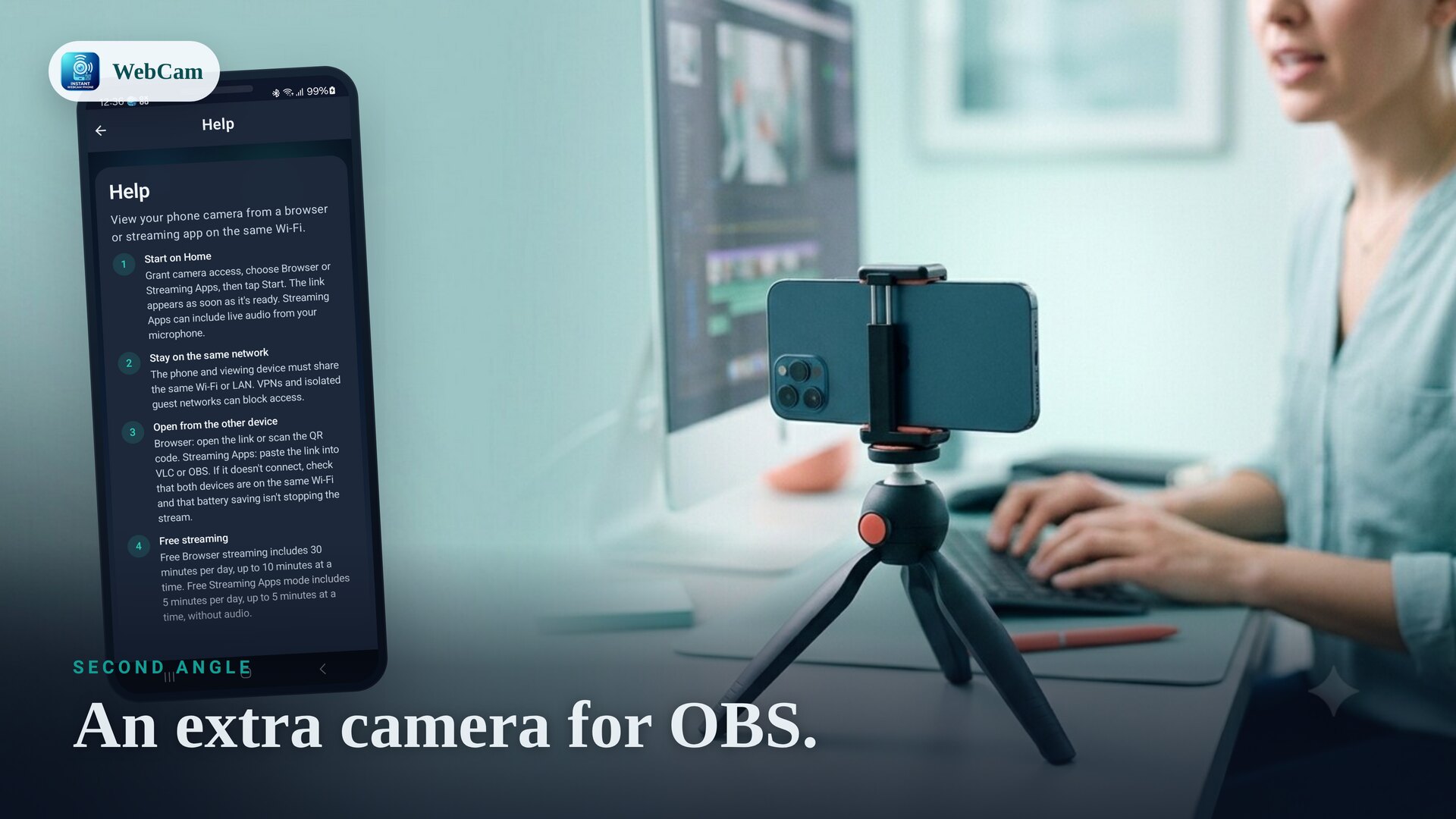
If you already use VLC or OBS, your phone can be a camera source in them. WebCam's Streaming-apps mode publishes an RTSP stream — H.264 video with optional live audio — that those apps open directly over your Wi-Fi.
Get the RTSP URL
Open WebCam and switch to Streaming-apps mode. WebCam shows the RTSP address for your phone on the network (an rtsp://… URL). Keep the phone and the player on the same Wi-Fi.
Open it in VLC
- In VLC, choose Media → Open Network Stream.
- Paste the
rtsp://…URL and press Play. - If playback looks delayed, lower VLC's network caching for a more live feel.
Add it to OBS
- In OBS, add a Media Source to a scene.
- Untick Local File and paste the RTSP URL as the input.
- Use it as an extra camera angle, or start OBS's virtual camera to feed the phone into meeting apps.
Audio and quality
RTSP mode can include optional live audio from the device microphone alongside the video. Adjust the stream settings in WebCam to balance quality against what your network handles smoothly.
Browser mode vs RTSP
If you just want to watch in a browser with nothing to install on the other device, use Browser mode instead. RTSP is the right choice when you want the phone inside a player or production tool like OBS.
See also: use your phone as a webcam for PC.
Frequently asked questions
What URL do I paste into VLC or OBS?
Switch to Streaming-apps mode and WebCam shows the RTSP address for your phone on the network. In VLC use Open Network Stream; in OBS add a Media Source and paste the RTSP URL.
Does it include audio?
RTSP mode can include optional live audio from the device microphone alongside the H.264 video.
Can I use it as a second camera in OBS?
Yes. Add the RTSP stream as a Media Source in an OBS scene to get an extra phone-camera angle.
Ready to try it?
WebCam is free to install. A live stream in seconds.