 WebCam
How to use your phone as a webcam for your PC
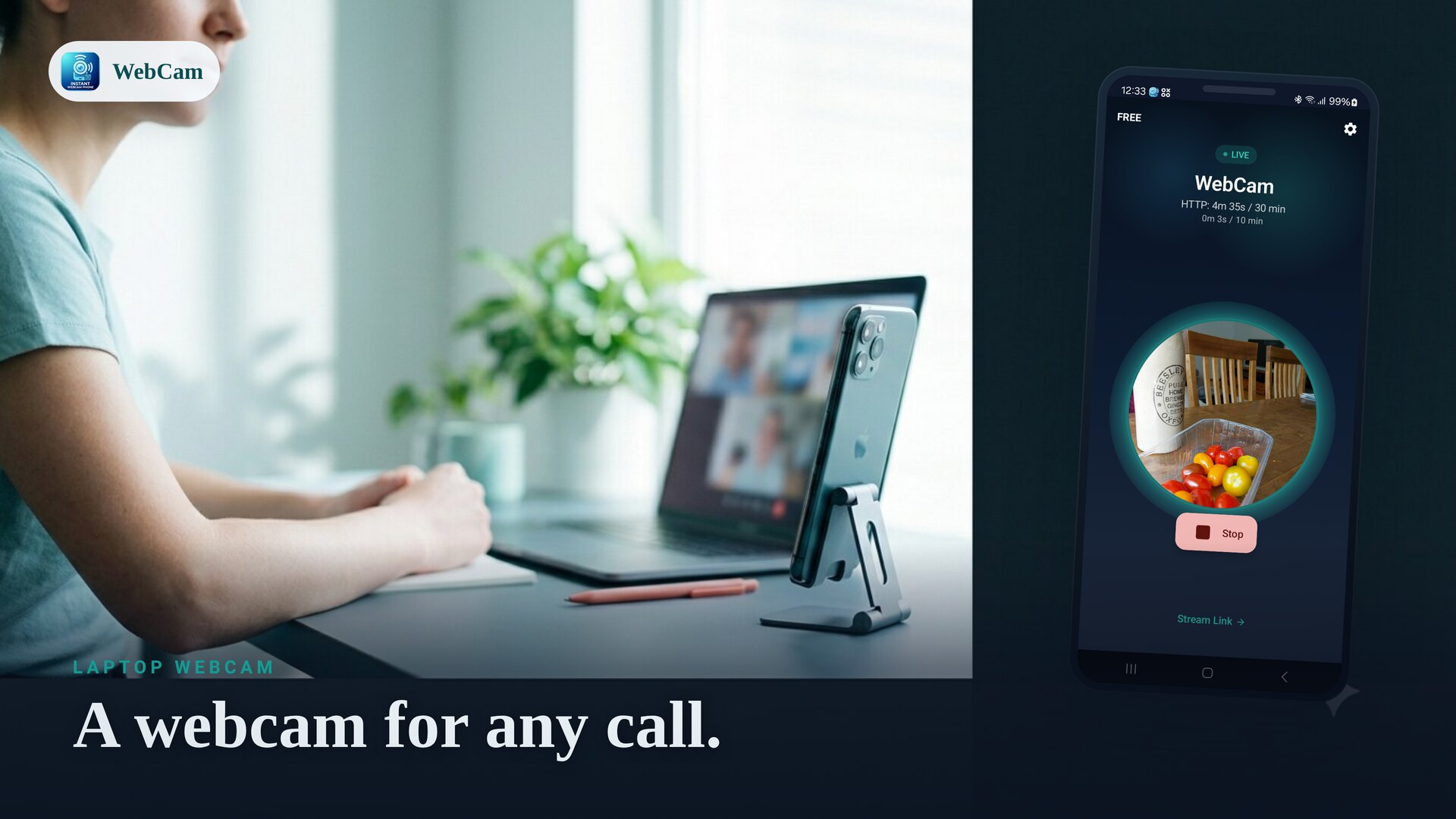
You don't need to buy a webcam — the camera in your pocket is usually better. WebCam turns your Android phone into a Wi-Fi camera that streams to your computer over your own network, with no cloud account and no USB cable.
Two ways to get the phone onto your PC
WebCam offers two viewing paths, and which you pick depends on what you're doing:
- Browser mode serves the live feed at a local address. Open that address in any browser on your computer to watch the camera — perfect for monitoring, screen-sharing the tab, or keeping an eye on something while you work.
- Streaming-apps mode (RTSP) gives you an RTSP URL. Bring it into OBS and use OBS's virtual camera, and your phone becomes a selectable camera device inside Zoom, Google Meet, Microsoft Teams and similar apps.
Step by step
- Install WebCam and put the phone and computer on the same Wi-Fi network.
- Open WebCam, pick the front or back camera, and set rotation/mirror so the picture looks right.
- Tap Start. WebCam shows the stream address (and a QR code).
- For a browser view, type the address into your computer's browser. For a meeting-app camera, paste the RTSP URL into OBS and start the virtual camera.
Get the best picture
Start with a moderate resolution and frame rate, then raise them if your Wi-Fi keeps up smoothly. You can tune resolution, frame rate and JPEG quality in settings. Good light on your face and a small phone stand make a bigger difference than maxing every setting.
No cloud, no cable
Everything stays on your local network — the stream is not uploaded to a developer cloud, and there's no account to create. If you want to keep the feed to yourself, set a password to gate the stream and controls.
New to it? See how WebCam works, or set up an extra angle with the VLC & OBS guide.
Frequently asked questions
Can I use it in Zoom, Meet or Teams directly?
Browser mode shows the live feed in a browser tab, which is great for monitoring and for screen-share. To use it as a camera device inside a meeting app, bring the RTSP stream into OBS and use OBS's virtual camera as the meeting's camera.
Do I need a USB cable?
No. WebCam streams over your local Wi-Fi, so the phone and computer just need to be on the same network.
Which camera quality should I pick?
Start with a moderate resolution and frame rate, then raise them if your network keeps up. You can adjust resolution, FPS and JPEG quality in settings.
Ready to try it?
WebCam is free to install. A live stream in seconds.